What workflow would allow me to quickly look up an ad hoc translation?
-
So, this extension is a companion for years already and one of the first extnensions I am installing on most browsers, but recently I get more and more annoyed by the fact that id doesn't seem to offer any translation. Why? Until recently i just googled a word and in 8 out of 10 cases it showed me a translation with a couple of alternative meanings. However, I moved away from Google and big US tech in general. Currently I use Startpage as my default search engine in firefox and added a custom search engine, that sends a translation to Startpage by adding "in English" to the query, but I am not happy with this, because I often forget to enter the custom search engine word at the beginning and because Startpage only offers a single translation and no nuance.
Can I set up dictionaries in a way to also give me a simple translation for languages like German-to-English, English-to-German, Chinese-to-German/English, English/German-to-Chinese?
-
@yexet29937
thank you for the feedback. But I don't get what you mean after reading multiple times.
are you referring to Dictionariez? Dictionariez essentially uses Wiktionary to look up when double clicking on words. It has nothing to do with Startpage, nor adding "in English" to the query.
Could you give me more details how the problem is? And screenshots when you are getting problems? -
Yes, was convoluted. Sorry for that.
The question boils down to:
Is there an option to translate anything that is not text on a website to a corresponding language?
Think of it like this: Dictionariez currently is to my understanding only a dictionary for definitions, which is very useful for reading text. But if you compile text, you have little use of such a dictionary that is completely in the target language. What you actually need is a dictionary with translations from your language to the target language.
So, what I am missing is a shortcut, that accesses an input method (e.g. think of a text field) where I can just enter a word I'd like to have translated and either automatically enters it to the place where I am compiling my text, automatically sends it to clipboard or gives me options to do so.
-
@yexet29937
Aha, I think I got what you need. How about these translations tools?https://pnl.dev/tags/translation
You can add those translation tools to your Dictionariez. They are translators, so that you can translate sentence or paragraph, or a large chunk of text just like how you normally use dictionariez: select some text, then either:
- click on the app icon to open the translator in Dictionariez,
- use the rightclick contextmenu,
- use Ctrl+Shift+X (default shortcut to call up Dictionariez).
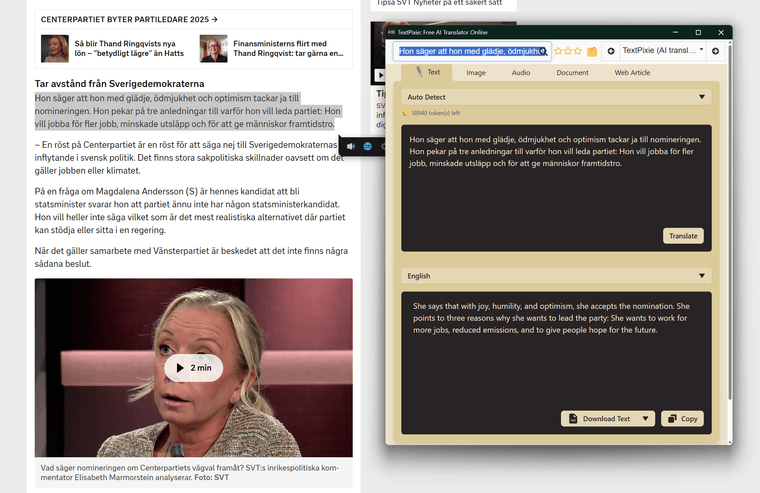
Seems you want German-English-Chinese ones?
-
@yexet29937
Another thing is that Dictionariez has the translation feature in Pro, which when you select any text, you should see a little bubble comes up where you can find the translator icon there and it can translate the selected text to any language.
 https://pnl.dev/topic/1041/introducing-translation-pro-instant-text-translation-in-dictionariez
 -
@yexet29937 said in What workflow would allow me to quickly look up an ad hoc translation?:
So, what I am missing is a shortcut, that accesses an input method (e.g. think of a text field) where I can just enter a word I'd like to have translated and either automatically enters it to the place where I am compiling my text, automatically sends it to clipboard or gives me options to do so.
And from what you describe here, you might be interested in this feature: https://pnl.dev/topic/952/introducing-help-me-refine-now-available-on-dictionariez-v5-4-0-enhance-your-writing-with-ai
Dictionariez provides a "Help me refine my writing" feature, comes very handy when you are writing something in a textarea or web editor. Please let me know if it's something that you are looking for. I have made this feature for quite a while now, but it seems nobody has been using it except me myself.
And tell me how can I improve it
-
@river Not gonna lie: you are just AMAZING, as simple as that!
Yes, you got my problem: adding one of the "translation tools" was what I needed and the Auto-ENG DeepL as default is great, but it seems better suited for translating sentences, than single words. Maybe you could add this dictionary somehow? Great thing is, that it also automatically recognizes if you're entering English/German and hence search for the opposite. It seems superior to DeepL, which is more designed to translate whole documents and captures nuances and subtext, in regards to single words, as it gives a full list of synonyms and typical dictionary information about them.
One last suggestion would be to enable more shortcuts, because I personally can think of three things, I want to do regularly on a shortcut basis - for definitions the text selection is already enough:
- look up English translation for German word (> leo)
- look up German translation for English word (> leo)
- lookup Chinese translation for English word (> mdbg.net / another leo with CN<>DE)
- translate Chinese sentence into English (> DeepL Translator Auto<>EN)
- translate German sentence into English (> DeepL Translator Auto<>EN)
So, if i could either assign three shortcuts with specific dictionaries or if i could have custom quick-dials when the Dictionariez popup is opened to jump to a specific dict/translator, that would be really great.
In the popup, currently the
Ctrl+arrowallows only to navigate the list of dictionaries exactly in order as provided in the settings, while there is no way to adjust the order. Also, theCtrl+arrowworkflow only allows to navigate through dictionaries after you entered a query. Would be much better to save resources and being able to navigate faster to the desired dictionary by changing dictionary with the shortcut without needing a query entered, because then we only need to load one page.I personally am not interested in having another AI tool, though.
-
@yexet29937
Thank you for the feedback. Glad to hear that the translation tools work for you. Yep, DeepL is a great translator for large text. If you are looking for Leo, there are a few here: https://pnl.dev/tags/leoOne last suggestion would be to enable more shortcuts, because I personally can think of three things, I want to do regularly on a shortcut basis
This is a great suggestion. Yeah it has been requested for a few times. I am definitely going to do it, and it will be in the near future. Stay tuned

currently the Ctrl+arrow allows only to navigate the list of dictionaries exactly in order as provided in the settings, while there is no way to adjust the order.
Are you aware that in the Dictionariez' options, you can manage the dicts list? You can add / remove / re-order etc, just drag and drop. Comment here if it works for you or not.
Would be much better to save resources and being able to navigate faster to the desired dictionary by changing dictionary with the shortcut without needing a query entered
It's supposed to work, that's a bug

 Thank you for telling me this. It will be fixed in the next version..
 -
Glad to hear that I can help making cool software even greater.
On my Firefox (-esr) there are only add more and restore default buttons. Drag and dropping doesn't work.
Made some experiments regarding Leo. Seems like "https://dict.leo.org/german-english/" and "https://dict.leo.org/englisch-deutsch/" lead to the exact same search, which is the bidirectional DE<->EN search and it looks like it's like that for all languages (or at least Chinese as well) and that unidirectional translations are addressed by "/<word>?side=" with either "left" or "right". So, you can derive from this programmatically all directions and the paths, where they can be found.
May that be as is. I realized that the best possible handling of bidirectional, single-word, synonymous-complete language translation for now comes by using Leo as a Firefox custom search engine. Even though they have their own extension, it's not very nice, because it opens in a new window every time you hit your shortcut, but then loads the full page of dict.leo.org before allowing a query. Setting it up as a custom search engine on the other hand, allows to go to task bar (
Ctrl+l), enter either@twhich is my shortcut for translate on bidrectional DE-EN dictionary Leo and eitherSpaceorTab, or even just typingdictandTabto accept the suggested custom search engine, hitEnterand directly load the desired results-page. Sounds longer, but feels near-immediate, while using Leo's extension feels like taking away 2 seconds before you even can start to enter what you are looking for.I feel like the convenience and speed of a setup like this for this kind of use case will be impossible to beat with the Dictionariez extension - but could be a nice to have for those, that don't know how to setup and use custom search engines, anyways or who want to use only dictionaries which don't have an OpenSearch implementation.
Anyways, there are many cases where a Dictionariez extension with multiple shortcuts could be useful, like for quick definitions and what not.
-
Thanks for the explanation! It’s interesting to see how you’re solving this, and it gives me a better idea of how to proceed.
On my Firefox (-esr) there are only add more and restore default buttons. Drag and dropping doesn't work.
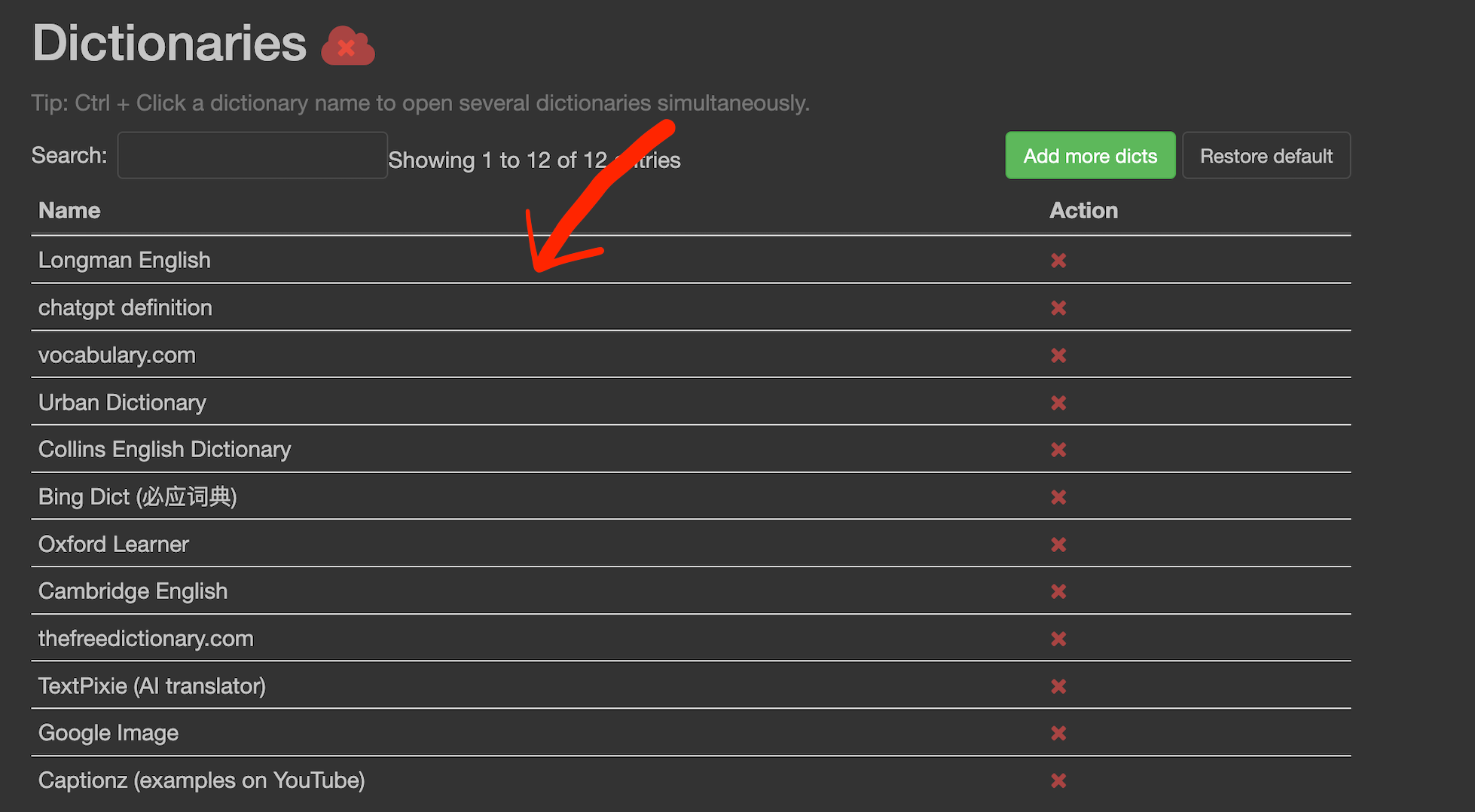
It should work. When you hover your cursor over the blank area next to the dictionary name, the pointer should change to a crosshair (move) icon. This indicates the item is draggable. You can then click and drag the dictionary to a new position in the list. Give it another try?
-
Oh wow, didn't realize that! To me there is no indication I can interact with them like this. Instead, there is a button for an action (the red x) and a link behind the name. Even after you mentioned it, I tried to drag-and-drop by actually pulling on the links. So, maybe you can make the cursor change on the full length of each entry to suggest that it is an interactive element?
-
I listened to your advice. Dictionariez v7.2.1 is out (available now on Firefox, under review on Chrome and Edge), with fixes of being able to navigate through dictionaries by shortcuts (Ctrl+Previous/Next Arrows) even when no query, and fixes of styles on some sites. It's a small patch, but I hope it makes your experience smoother. Expect the Chrome version in a few days!
So, maybe you can make the cursor change on the full length of each entry to suggest that it is an interactive element?
Yeah, good point. Thanks for the suggestion, I will see what I can do.


 Support me!